Phase Layout Overview
The phase layout consists of three sections: Continue Watching, My Playlists, and the Course List.
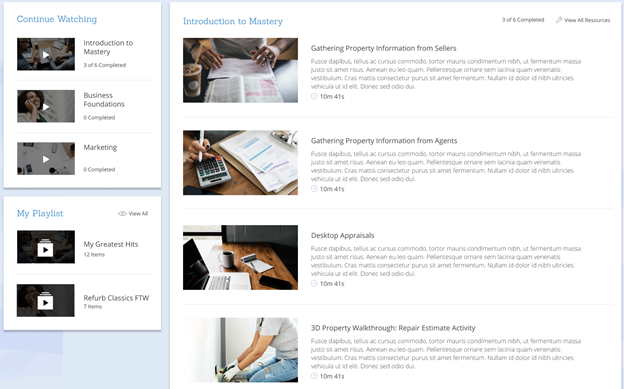
Continue Watching
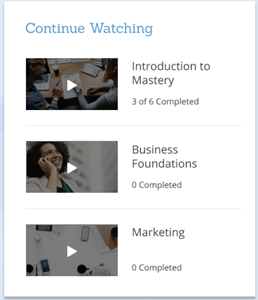
The ‘Continue Watching’ section allows you to pick up where you last left off by listing the three last courses that you started watching and did not complete. The three most recently watched courses will be shown on the ‘Continue Watching’ list.
Course Details
The following details are shown for each course:
- Featured Image – The featured image of the course.
- Title - The name of the course.
- Progress Indicator – The progress indicator reflects how many lessons that you have completed within the course.
Continue Watching Features
- Course Activity Shown – The courses listed in the ‘Continue Watching’ section is the most recently watched courses that have not been completed.
- Course List Updated – Courses that are shown on the list will be removed once they are marked as completed in the system.
- Activity Independent of Current View – The most recently watched list includes all courses regardless if they are included in the phase. This is to ensure the most consistent user experience for each Phase view.
My Playlist
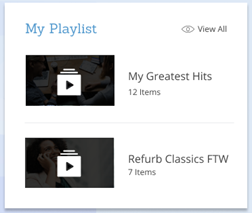
The ‘My Playlist’ section allows you to access your playlists directly from the phase page. The two most recently created Playlists are shown for simplicity, and there is a link that you can click to access all your playlists.
Playlist Details
The following details are shown for each playlist:
- Featured Image – The featured image is the featured image attached to the first course inside of the playlist.
- Title - The name of the playlist.
- Item Count – The number of items that are inside of the playlist.
My Playlist Features
- View All – You can click the ‘View All’ button to access all the playlists inside of your account.